Configure Sequential Printing#
Setting or cancelling sequential printing of text#
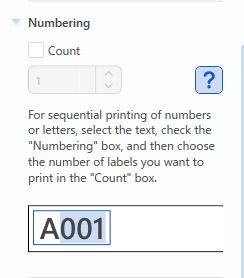
- Select the text where you want to apply or cancel sequential printing.
- Select the [Numbering] checkbox to apply sequential printing to the selected text. To stop sequential printing, clear the checkbox.
- In the “Count” box of the “Numbering” group, specify the quantity of the sequentially printed labels.
Setting or cancelling sequential printing of barcodes.#
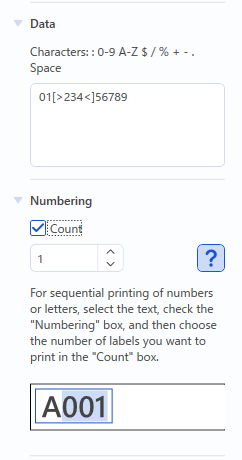
- In the “Data” text box, select the text you want to print sequentially.
- Select the [Numbering] checkbox to apply sequential printing to the selected text. To stop sequential printing, clear the checkbox.
- In the “Count” box of the “Numbering” group, specify the quantity of the sequentially printed labels.
Note
Sequential printing is applied to the text enclosed in [> <].
Sequential printing cannot be applied twice to the same text.
Sequential printing#
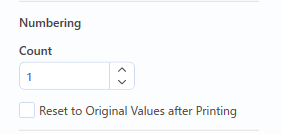
- Click the [Print] button. The “Numbering” group appears in the "Print" dialog box only if sequential printing has been applied in the "Edit Label" dialog box.
- In the “Count” box of the “Numbering” group, specify the quantity of the sequentially printed labels.
- Sequential printing will continue to be applied to all new labels. To stop sequential printing, select the [Reset to Original Values after Printing] checkbox.
- Click the [Print] button in the Print dialog box.