Edit a Database#
To make changes to a saved Database, follow these steps:
1.Connect the Database you want to edit (for more information, see "Connect a Database").
2. Click the popup menu button and click [Edit… ] to open Database editor.
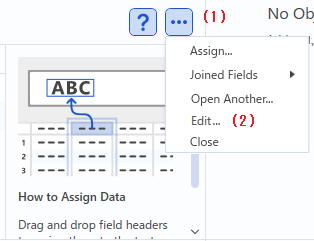
(1) Popup menu button
(2) [Edit...] option
Note
- If the [Edit...] option is unavailable, save your Database as an LBXS file.
About the Database Editor#
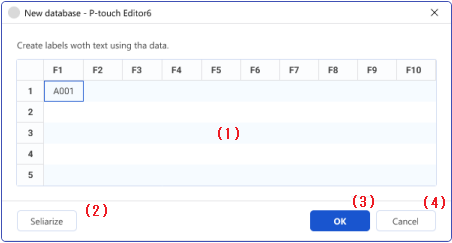
(1) Editable field
- Each field can hold a maximum of 255 characters.
- Double-click in a cell to edit it.
Note
- To set a default value for the number of cells in your Database, click [File] > [Option] > [Option Dialog] > [Database].
(2) [Serialize] button
- Opens the Serialization dialog .
Note
The [Serialize] button is disabled when:
- You select an empty field.
- More than two fields are selected.
(3) [OK] button
- Click OK to save your changes in this Database.
(4) [Cancel] button
- Click Cancel to exit this screen without saving changes to the Database.