Definitions and Examples#
Definitions#
About Database#
Using a Database in P-touch Editor 6 allows you to save data in CSV (Comma-Separated Values) format so you can use it to fill in text and barcodes when creating new labels.
About assigning#
This refers to inserting database fields into a layout.
Label to be created#
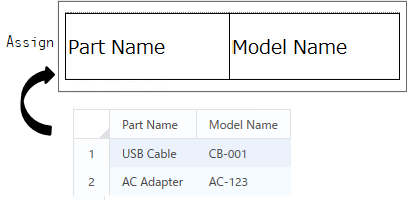
↓
Printed labels#
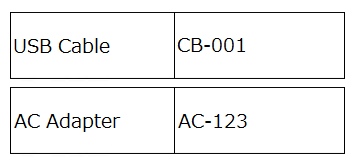
Objects created by inserting fields into a layout are called “merged objects” (“Part Name” and “Model Name” shown above).
Each row of data read from an Excel/CSV file is called a “record”.
The part of the currently selected record that is displayed as the record is changed is called “field data”.
Example#
Connecting/disconnecting a database#
Connecting a database#
Connect a database to the layout.
Only one database file can be connected to a single layout.
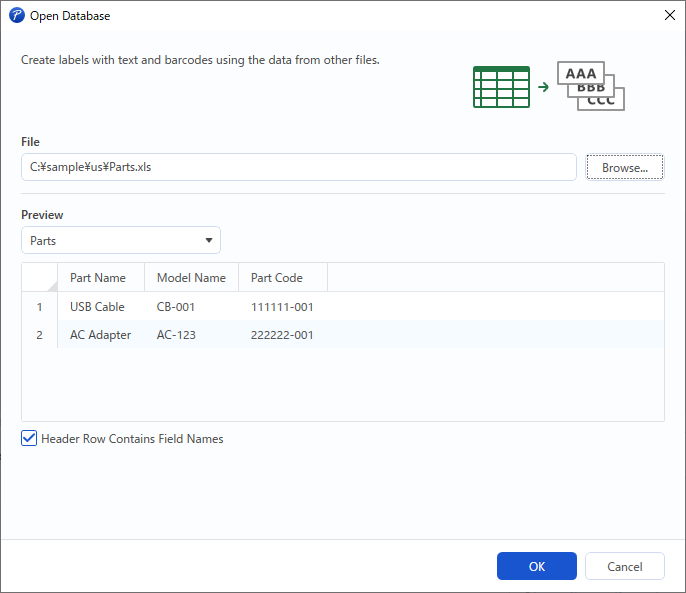
- Click the [Database] button.
- The [Open Database] dialog box appears.
- Click the [Browse...] button.
Browse to the folder containing the desired file.
MEMO: Drag and drop a file to the file path text box to see the path of that file. - Double-click the desired file.
MEMO: The supported file name extensions are .xls, .xlsm, .xlsx, .csv and .txt. - To display the first database record in the header row of the preview, select the [Header Row Contains Field Names] check box.
If the check box is cleared, “F1”, “F2”, etc., appears in the header row. - Click the [OK] button.
Switching the database#
The database connected to the layout can be switched to a different one. Only one database file can be connected to a single layout.
- Use any of the following methods to display the [Open Database] dialog box.
・Click the [Database] button.
・Click the [...] button in the database area, and then select “Open Another…”. - Use the same procedure described in Connecting a database to select a database.
Disconnecting the database#
- Click the [...] button in the database area, and then select “Close”. When a confirmation message appears, click "OK" to confirm that you want to disconnect the database.
Database area#
The records and field data in the currently selected database file are listed.
The records are identified in the left column, and the fields in the top row.
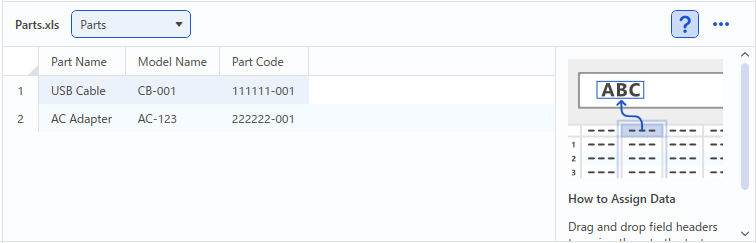
If the [Header Row Contains Field Names] checkbox was selected when the database was connected, the first record in the database appears as field names.
By dragging a field name to the label editing area, an object linked with that field is created.
The result differs depending on where it is dropped.
-
If it is dropped on an object that can be linked with the database, the existing data is replaced with the database data and linked with the dragged field.
When, while the field name is being dragged, the pointer moves over an object that can be linked with the database, that object will be highlighted. -
If it is dropped on an object that cannot be linked with the database, or if it is not dropped on an object, a text object linked with the dragged and dropped field is added.
Database Field#
A list of the database fields for each object appears.
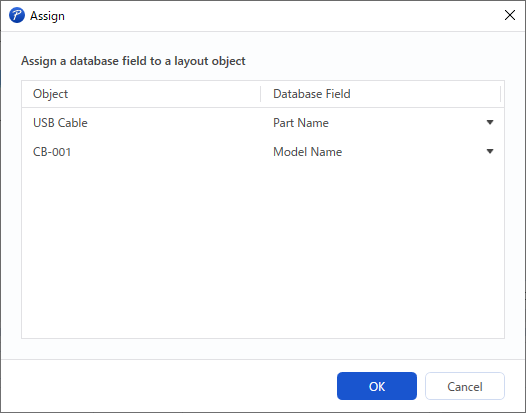
-
Object column
This lists the objects in the open layout that correspond to the connected database.
If the displayed object name is for a text object, the specified text appears.
If it is for a barcode object or arranged text, the specified object name appears. -
Database Field column
Displays the field names in the connected database.
If no database fields have been specified, “(None)” appears.