Database Serialization#
To set a serialization pattern and select a range for label text, follow these steps:
To serialize text: Click [Database] on the toolbar, select [New... ] to open Database editor. Type the base text in a cell and then click [Serialize] button there.
- Select the numbers (0 to 9) and letters (A to Z or a to z) you want to serialize.
- If you serialize only one area of text, you must configure settings (1) through (4) in the Serialize dialog box that appears.
- If you serialize two areas of a text, configure also the settings (6) through (9) in the Serialize dialog box that appears.
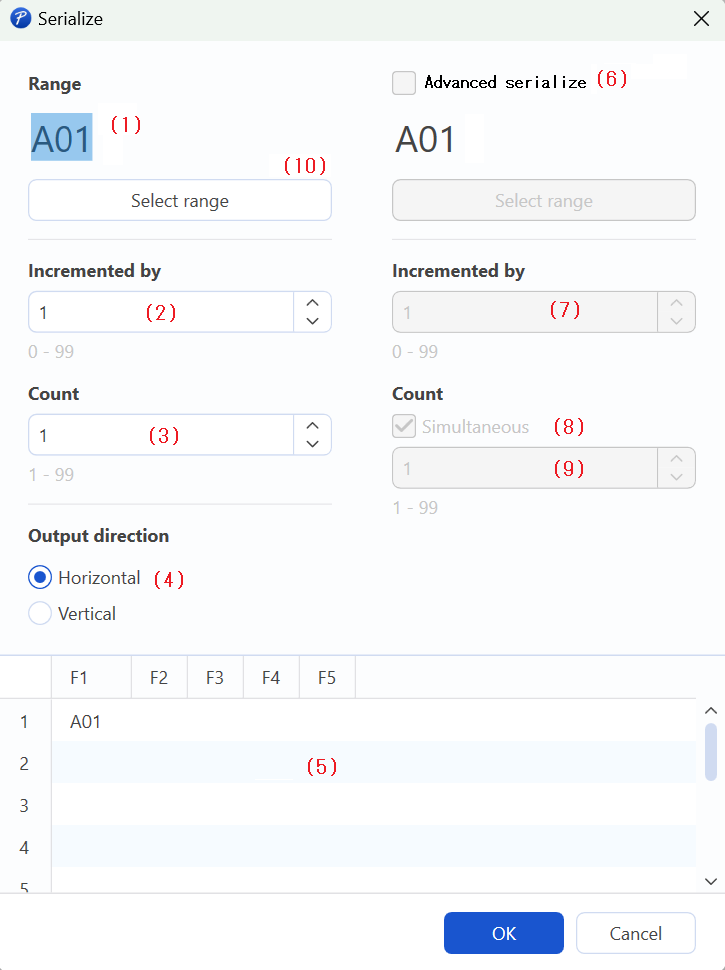
(1)(10) Range
Highlight the text you want to serialize.
If you want to change the text you're serializing, click Select range and then highlight the new text area in your Database.
The example below shows that the [01] text is serialized as "A01, A02, A03".
(2) In the Incremented by field, set the incrementation parameter (how much to increase).
Example 1) Set Incremented by to 1 if you want to increase the number by 1, as in "A01, A02, A03".
Example 2) Set Incremented by to 2 if you want to increase the number by 2, as in "A01, A03, A05".
(3) In the Count field, set how many units of serialized data you want (up to 99).
A preview of your serialized data appears in the preview area (5) below.
Use this preview to confirm that your serialized data is accurate.
(4) Under Output direction, select the direction in which you want serialized data to be pulled.
A preview of your serialized data appears in the preview area (5) below.
(5) Preview area
A preview of your serialization of the current Database appears here.
(6) Advanced serialization check box
Select this check box if you want to set a second range within a single cell.
Note: if the entire text is highlighted under Range (1), this check box is disabled.
Populate the Incremented by and Count fields for your second serialized range as you did for your first range. Please note that the fields on the right half of this screen are for the 2nd range (Advanced serialization) only.
(8) Simultaneous serialization check box
Select this check box if you want the 2nd range's Count to be the same as the first range's Count.
Clear this check box if the 2nd range's Count is different than that of the first range, and then set how many units of serialized data you want (up to 99).
The following previews are the examples when you select Horizontal/Vertical of Output Direction.
Example1:
| F1 | F2 | F3 | F4 | F5 | |
|---|---|---|---|---|---|
| 1 | A01 | A02 | A03 | A04 | A05 |
| 2 | |||||
| 3 | |||||
| 4 | |||||
| 5 |
(1) Range : [01]Highlighted
(2) Incremented by : [1]
(3) Count : [5]
(4) Output direction : [Horizontal]
Example2:
| F1 | F2 | F3 | F4 | F5 | |
|---|---|---|---|---|---|
| 1 | A01 | ||||
| 2 | A03 | ||||
| 3 | A05 | ||||
| 4 | A07 | ||||
| 5 | A09 |
(1) Range:[01]Highlighted
(2) Incremented by:[2]
(3) Count:[5]
(4) Output direction:[Vertical]
Both areas [A] and [01] are independently serialized.
Example3:
| F1 | F2 | F3 | F4 | F5 | F6 | |
|---|---|---|---|---|---|---|
| 1 | A01 | A02 | A03 | B01 | B02 | B03 |
(1) Range : [A]Highlighted
(2) Incremented by : [1]
(3) Count : [2]
(4) Output direction : [Horizontal]
(6) Range : [01]Highlighted
(7) Incremented by : [1]
(8) Count : [3]
(9) Simultaneous serialization check box : [Off]
Example4:
| F1 | F2 | F3 | |
|---|---|---|---|
| 1 | A01 | B02 | C03 |
(1) Range : [A]Highlighted
(2) Incremented by : [1]
(3) Count : [3]
(4) Output direction : [Horizontal]
(6) Range : [01]Highlighted
(7) Incremented by : [1]
(8) Count : [3]
(9) Simultaneous serialization check box : [On]